This guide covers everything you need to know about protecting, using, and troubleshooting your Echo Flask™ touchscreen.
🛡️ Screen Safety
To keep your Echo Flask™ screen in great condition:
- Avoid dropping the Flask — impact can crack the screen and affect the performance of your Flask.
- Do not submerge or place the Flask in the dishwasher, microwave, or refrigerator/freezer — exposure to extreme temperatures, humidity, and water pressure can damage internal components
Please note:
Cracked screens and damage caused by misuse are not covered under the standard warranty.
For added peace of mind, you can explore Echo Care Protection, which includes coverage for accidental damage:
🔗 What is Echo Care
Unlocking Your Screen
- Ensure your Flask is fully charged
- Tap the screen to wake the display
- Swipe up to unlock the interface
Understanding Your Screen
Battery Indicator
The battery icon in the top left corner of the screen indicates the Flasks' charging status
- Changes from green → yellow → red as battery decreases
- A low battery message will appear when power is running low
- You may still get 1–2 10-minute cycles after the warning appears
💡 Best practice: Allow your battery to fully drain periodically for optimal performance.
For more help:
🔗 Echo Flask™ Battery & Charging Guide
Bluetooth symbol
The Bluetooth symbol in the upper right corner will indicate connection status:
- White = Not connected
- Teal = Paired and connected
🔗 How to Pair and Connect Your Flask™
Starting/Controlling a Hydrogen Cycle
- Press the Play button to begin a 10-minute cycle
- Use + / – to adjust time in 1-minute increments.
Additional Controls:
- Screen auto-locks after 3 seconds (swipe up to unlock)
- “Ready” will display when the cycle is complete
- Note: If you would like alerts on your device, you can adjust the sound settings under
🔗 Devices in the Echo Water app.
Stopping a Cycle Early
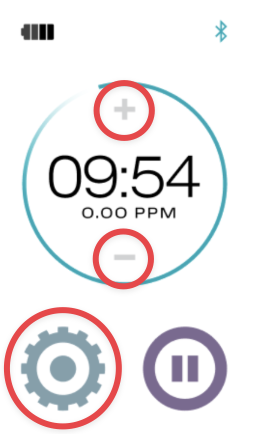
- Tap “–” until time reaches 0
OR - Press pause → tap the gear icon → select “Power Off” to end the cycle and place the Flask into sleep mode (this does not fully power the device off, it simply puts it to sleep)
Note: Cycles under 2 minutes won’t count toward app tracking.
PPM Counter
The PPM reading displayed on your Echo Flask™ screen is an estimate, not a direct measurement of the hydrogen in the water. It’s calculated based on the cycle time and known performance of the device, rather than being tested in real time.
Here’s how it works:
- The Flask is designed to produce a consistent and predictable amount of hydrogen during each cycle
- Based on that, the system estimates the PPM output depending on how long the cycle runs
- The device does not contain a built-in sensor that actively tests or measures hydrogen levels in the water
Estimated Output:
- A 10-minute cycle can produce up to ~6 PPM
- A 20-minute cycle can produce up to ~8 PPM
Why this matters:
Real-time hydrogen measurement requires specialized external equipment (like lab-grade testing tools), which isn’t built into portable devices like the Flask.
Settings Overview
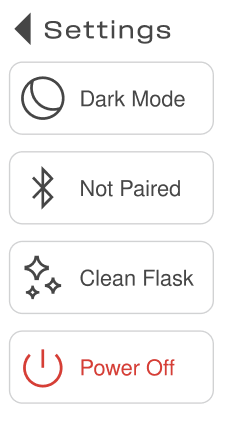
Light / Dark mode
Turn Dark Mode on for a black screen background.
Turn Dark Mode off for a white screen background.
Pairing
- Paired: it is paired with the Echo Water App
- Not Paired: It is not paired with the Echo Water App
- 🛠️ Showing not paired when it should be? Remember, your Flask is connected to your app, not your phone. Once you open the app, it should automatically reconnect and show as paired again.
Clean Flask
- Simply click "Clean Flask."
- Then hit the Play button to initiate the cleaning countdown
- To learn more, please visit 🔗 Cleaning & Maintenance of Your Echo Flask™
Power Off
Selecting “Power Off” places the Flask into sleep mode rather than fully shutting it down. The device will only completely power off once the battery is fully drained, so tapping the screen after powering off will wake it back up.
Tracking totals
These are your lifetime totals for that particular Flask
- Your total number of Flasks consumed
- Your total H2 in mg generated
- Your longest streak in days
Screen FAQs and Solutions
📘 Do you offer screen protectors?
At this time, we do not offer a screen protector for the Echo Flask™, but we hope to add one in the future.
In the meantime, universal screen protectors are widely available through third-party retailers. If you're looking for a temporary solution: 🔗 Universal Screen Protector
📘 My Flask screen is black and will not wake up.
There are a few possible reasons your Flask may not be working as expected, and we want to pinpoint the exact issue so we can get the right replacement to you. It could be:
- If you have just run a "Clean Flask" cycle.
- Charging cord or power block
- Battery not holding a charge
- Screen becoming unresponsive
1. Plug in and wake the screen
- Plug your Flask into a wall outlet for at least 2.5 hours.
- Gently tap the display screen
- → Sometimes the screen just needs a more in-depth charge to “wake up” and will come back on.
2. Try a different power setup
- Use a different USB-C charging cord
- Try a different charging block and wall outlet
- → Any standard USB-C cord and block will work with your Flask.
- → This helps rule out a faulty cable or adapter (which is more common than you’d think!)
3. Allow for a FULL charge
- Keep the Flask plugged in for at least 2.5 hours
- → If the battery was fully drained, it may take a bit before the screen responds again.
4. Try starting a cycle from the app
- Open the Echo app and attempt to start a hydrogen cycle
- → This step helps us narrow things down:
- If the cycle starts → the battery is working, and it’s likely a screen-related issue
- If the cycle does NOT start → this points to a potential battery issue
💡 Helpful Tip
If the device has been sitting unused for a while, it may take a full charge cycle or two before it responds normally again.
📘 My Flask screen is black and will not wake up after a "Clean Flask" cycle.
The Clean Flask cycle is not just for cleaning—it plays an important role in maintaining performance.
It helps:
- Balance the polarity of the generator plates
- Loosen light buildup
- Maintain consistent hydrogen production
Why Your Screen May Not Wake After a Cleaning Cycle
If your screen doesn’t turn on after running a Clean Flask cycle, don’t worry—this is usually temporary.
Here’s why it can happen:
Increased Power Demand
The cleaning cycle runs longer and places more demand on the battery.
If your battery was already low, it may drain to a level where:
- The screen doesn’t immediately respond
- The device appears “off.”
Temporary System Pause
During the cleaning cycle, the system performs internal balancing.
This can occasionally cause:
- A brief delay in responsiveness
- The screen does not wake up until power stabilizes
Screen Troubleshooting
1: Plug It In
- Connect your Flask to power
- Let it charge for at least 2.5 hours
2: Wake the Screen
- Gently tap the display
- Avoid pressing too hard
3: Check Charging Setup
- Try a different USB-C cord
- Try a different charging block and outlet
💡 Any USB-C cord/block is compatible.
4: Test Through the App
Try starting a cycle using the Echo app:
- If it starts → likely a screen issue
- If it doesn’t → likely a battery issue
📘 My Flask screen is having issues after running an app update
If your screen is acting up after a recent update, we recommend reviewing our Firmware and Updates article for step-by-step troubleshooting guidance:
🔗 Firmware and Updates
📘 My Flask screen is cracked
Cracked screens are considered accidental damage and are not covered under the standard warranty. However, if Echo Care protection was purchased, accidental damage—including cracked screens—may be eligible for coverage.
If your Flask arrived with a cracked screen, please submit a shipping claim upon receipt so we can review the issue under our Shipping Protection Policy
🔗 File a Shipping Claim
📘 How do I make the LCD screen stay awake longer?
The Echo Flask™ screen can stay awake for up to 10 seconds at a time. If you’d like to shorten the auto-lock duration, you can adjust this setting in the Echo Water app under: 🔗 Devices
Next Steps
If you’ve completed the troubleshooting steps and it’s still not working as expected, let’s definitely take a deeper look for warranty coverage.
👉 Click here to get started: Warranty Review Page
Related to:
Was this article helpful?
Articles in this section
- What Type of Vinegar Should I Use to Clean My Echo Device?
- Why Is the Echo Flask Only 12 Ounces?
- Echo Flask - What's In The Box?
- Echo Flask Features, Construction & Specifications
- Echo Flask™ Battery & Charging Guide
- Understanding your Flask™ Generator
- How to use your Echo Flask™ screen
- Understanding Your Echo Flask™ Lid
- Cleaning & Maintenance Of Your Echo Flask™
- Rehydrating your Echo Flask™
Add comment
Please sign in to leave a comment.